> ## Documentation Index
> Fetch the complete documentation index at: https://easymate.ai/docs/llms.txt
> Use this file to discover all available pages before exploring further.
# Finding your way around
> The main screens in EasyMate: the Setup and Workspace views, your solution cards, and what each status label means.
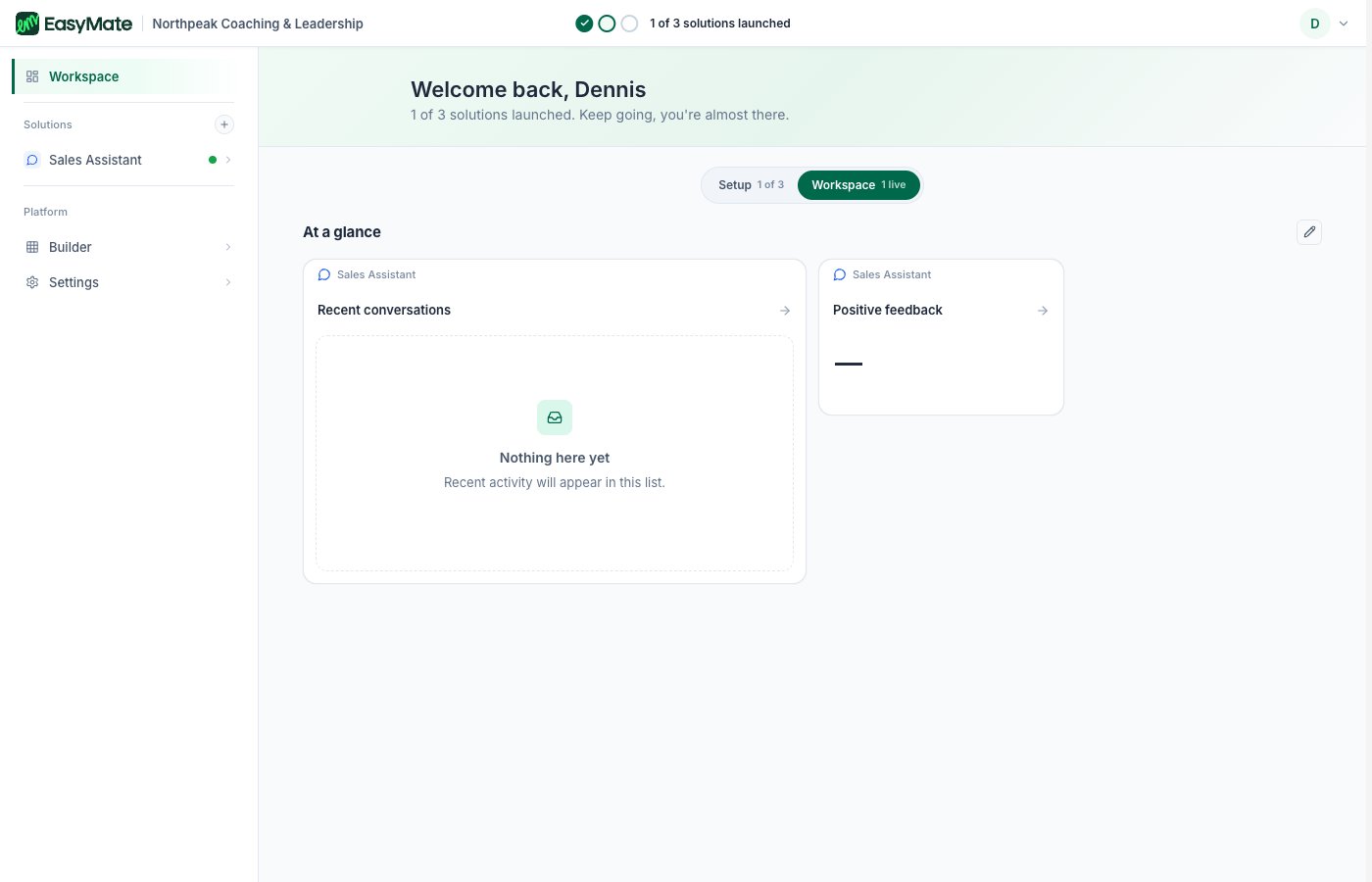
Once your workspace is built, everything happens in two main views. A switcher at the top lets you move between them, and it shows your progress (for example "1 live" or "5 of 5").
## The two views
* **Setup** is where you build and launch your solutions. You'll spend most of your early time here, working through each solution's steps.
* **Workspace** is your day-to-day home once things are live. It shows how your solutions are doing at a glance, with quick stats like new leads this week, and is where you'll check in once you're up and running.
You can switch between them anytime. Early on, Setup is the busy one. After you launch, Workspace becomes your home base.
 ## Your solutions and their status
Each solution appears as a card. A small label on the card tells you where it is:
| Status | What it means |
| --------------- | ----------------------------------------------------------------- |
| Not started | The solution is in your workspace but you haven't set it up yet. |
| Building | EasyMate is creating the solution for you. This is brief. |
| Setting up | You're partway through the setup steps. |
| Ready to launch | Setup is done, but it isn't live yet. You decide when to go live. |
| Launched | The solution is live and working. |
## Your solutions and their status
Each solution appears as a card. A small label on the card tells you where it is:
| Status | What it means |
| --------------- | ----------------------------------------------------------------- |
| Not started | The solution is in your workspace but you haven't set it up yet. |
| Building | EasyMate is creating the solution for you. This is brief. |
| Setting up | You're partway through the setup steps. |
| Ready to launch | Setup is done, but it isn't live yet. You decide when to go live. |
| Launched | The solution is live and working. |
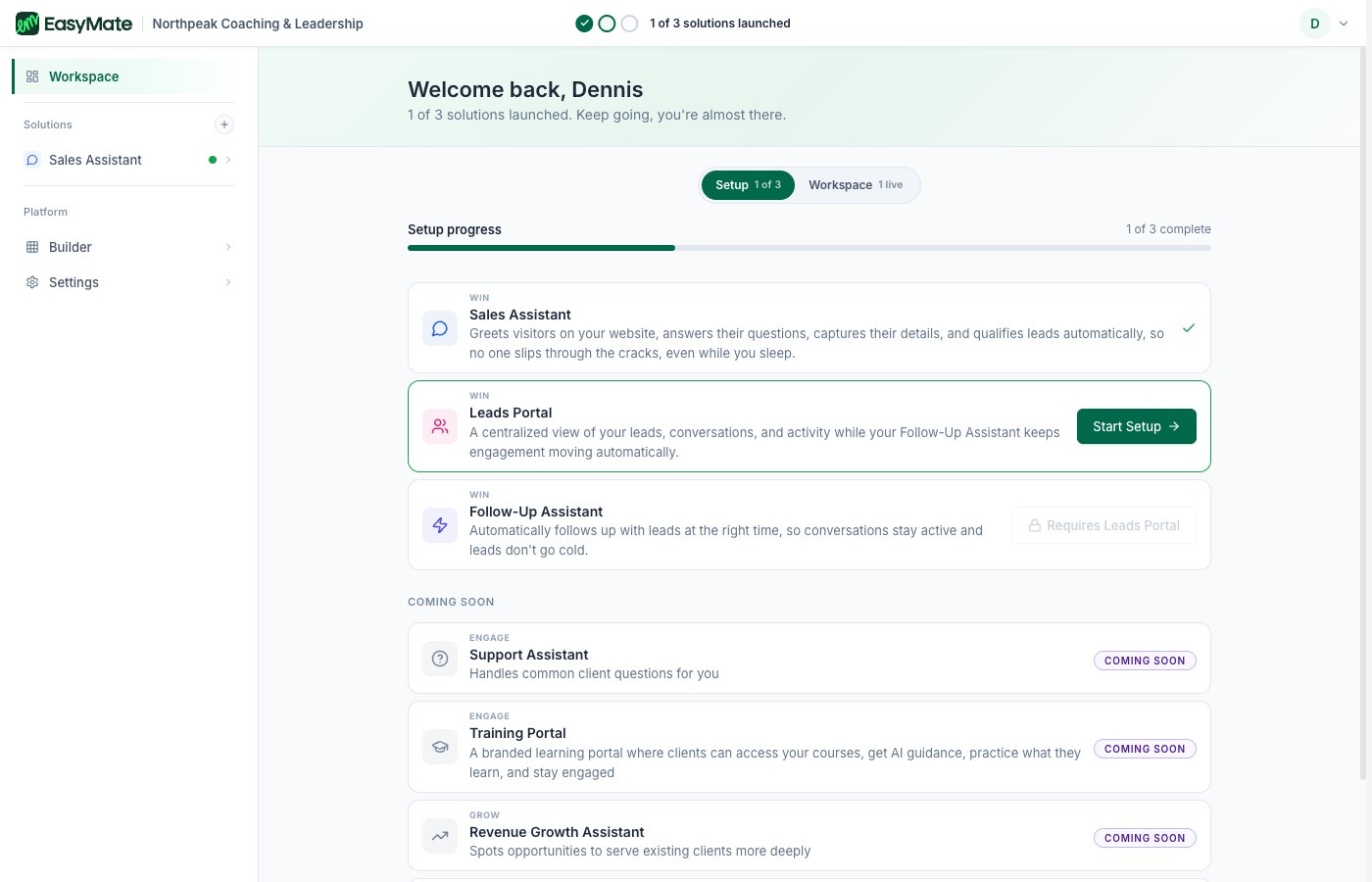 Some solutions wait for another one first. For example, your Leads Portal becomes available after your Sales Assistant is set up, because it builds on it. A solution that's waiting will say so until it's ready for you.
## The preview
While you set a solution up, EasyMate shows a preview of what your customers will see, such as the chat widget or your portal. During setup this uses sample data so the screen looks realistic. Once you add your own first contact or content, your real information takes its place.
## Next steps
* [Solutions overview](/docs/solutions/overview): set up your first solution.
* [Account and sign-in](/docs/your-account/account-and-sign-in): signing in and your profile.
Some solutions wait for another one first. For example, your Leads Portal becomes available after your Sales Assistant is set up, because it builds on it. A solution that's waiting will say so until it's ready for you.
## The preview
While you set a solution up, EasyMate shows a preview of what your customers will see, such as the chat widget or your portal. During setup this uses sample data so the screen looks realistic. Once you add your own first contact or content, your real information takes its place.
## Next steps
* [Solutions overview](/docs/solutions/overview): set up your first solution.
* [Account and sign-in](/docs/your-account/account-and-sign-in): signing in and your profile.