> ## Documentation Index
> Fetch the complete documentation index at: https://easymate.ai/docs/llms.txt
> Use this file to discover all available pages before exploring further.
# Onboarding step by step
> What to expect when you first sign up: the few questions that set up your workspace, and how letting EasyMate read your website saves you time.
The first time you sign up, EasyMate asks you a short series of questions. Your answers shape your workspace and the solutions you're offered, so it's worth taking a minute to be specific. Here's what to expect.
## 1. Your business name and website
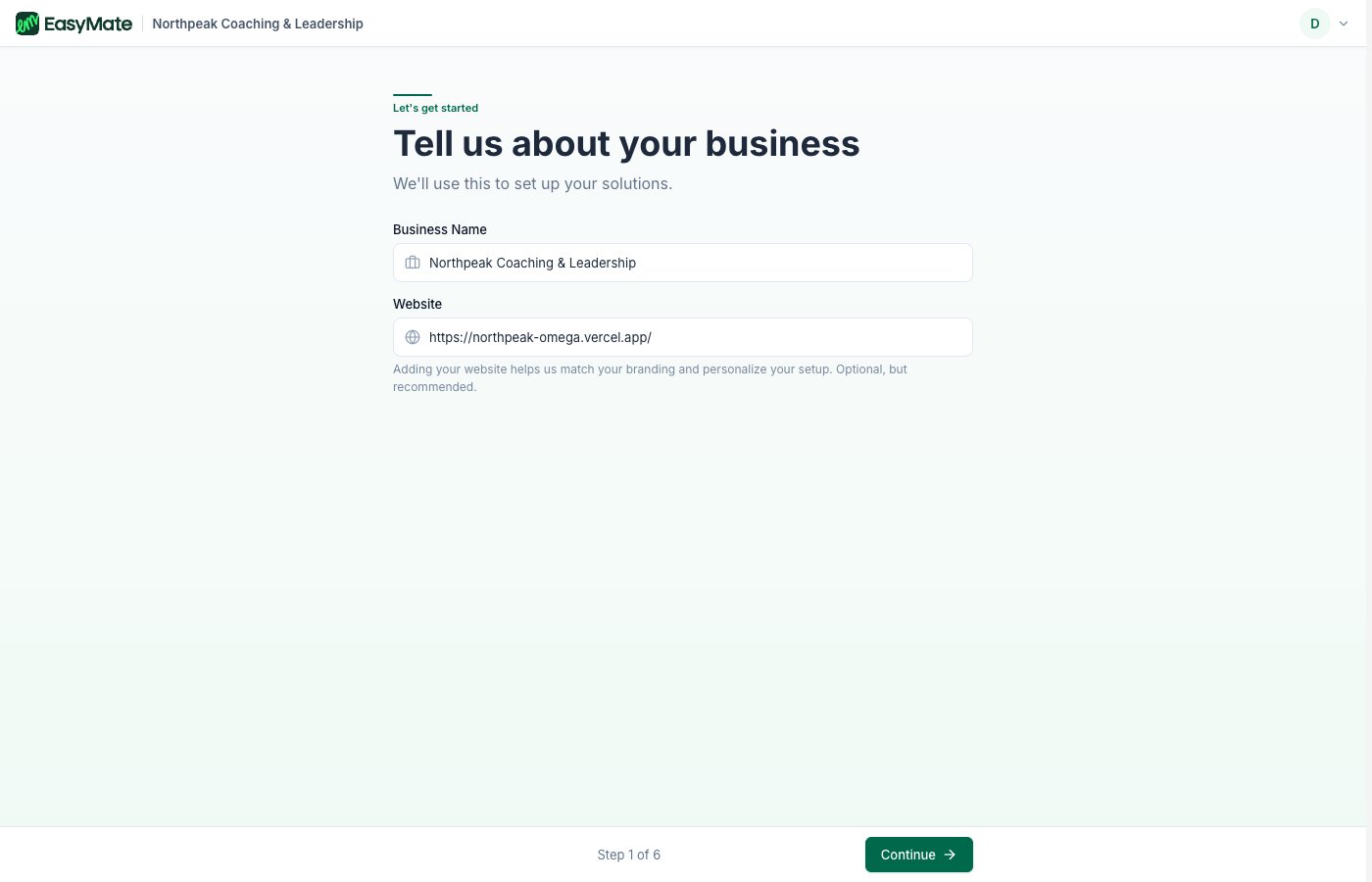
The first step asks for your **business name** and, optionally, your **website**.
If you have a website, paste its address. EasyMate reads your public pages and uses them to get a head start: your branding (logo and colors), your business details, and the general tone of your writing. This saves you filling everything in by hand.
The page reading takes a few seconds. Your website needs to be public, a normal page that anyone can open. Pages behind a login, PDFs, and broken links can't be read.
No website? No problem. The website is optional. Just enter your business name and EasyMate starts you with sensible defaults that you fill in yourself.
 ## 2. Your industry
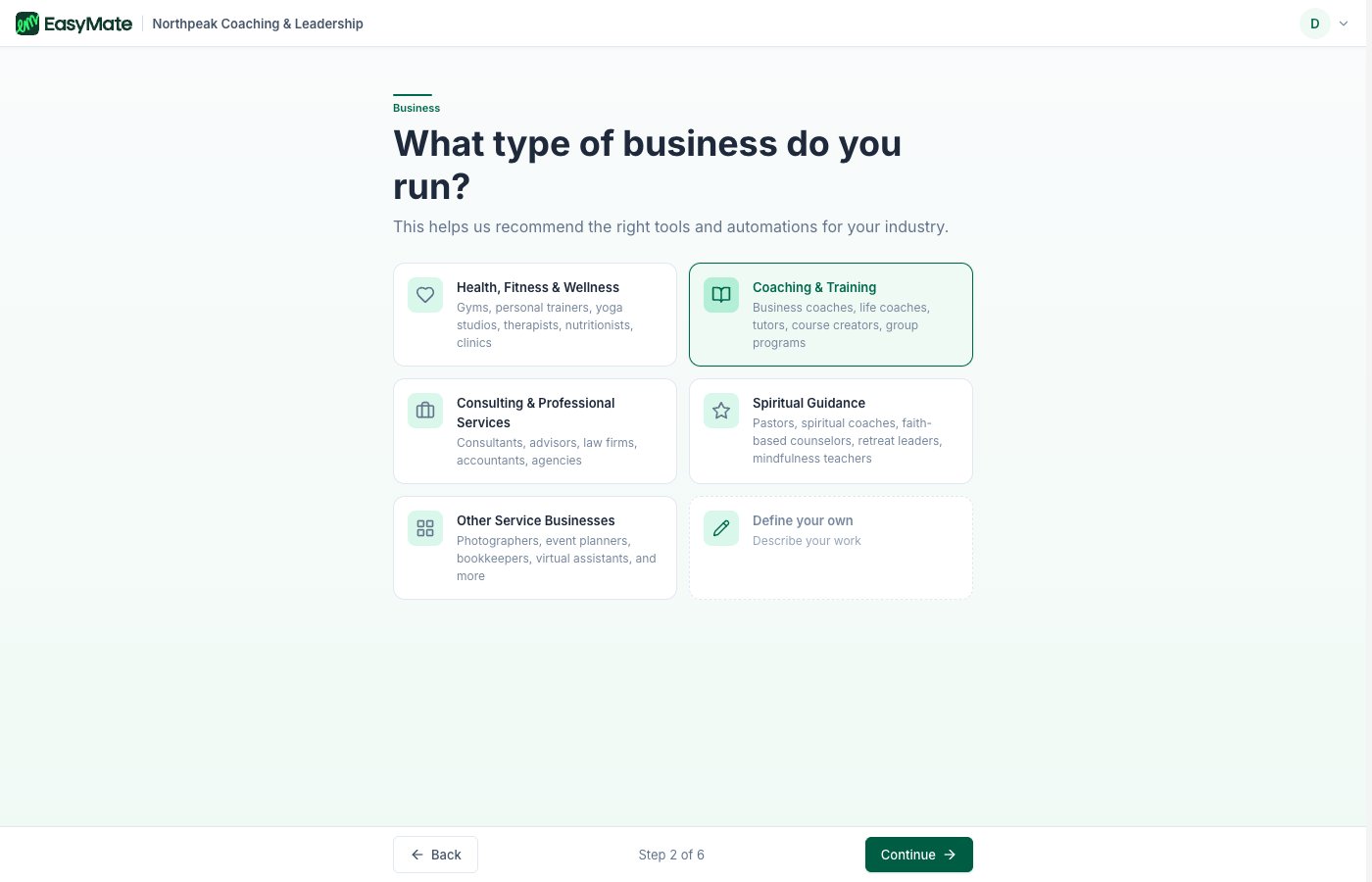
Tell EasyMate what kind of business you run. This helps it suggest the right wording and options later. If your industry isn't listed, choose the closest match or enter your own.
## 2. Your industry
Tell EasyMate what kind of business you run. This helps it suggest the right wording and options later. If your industry isn't listed, choose the closest match or enter your own.
 ## 3. What you call your customers
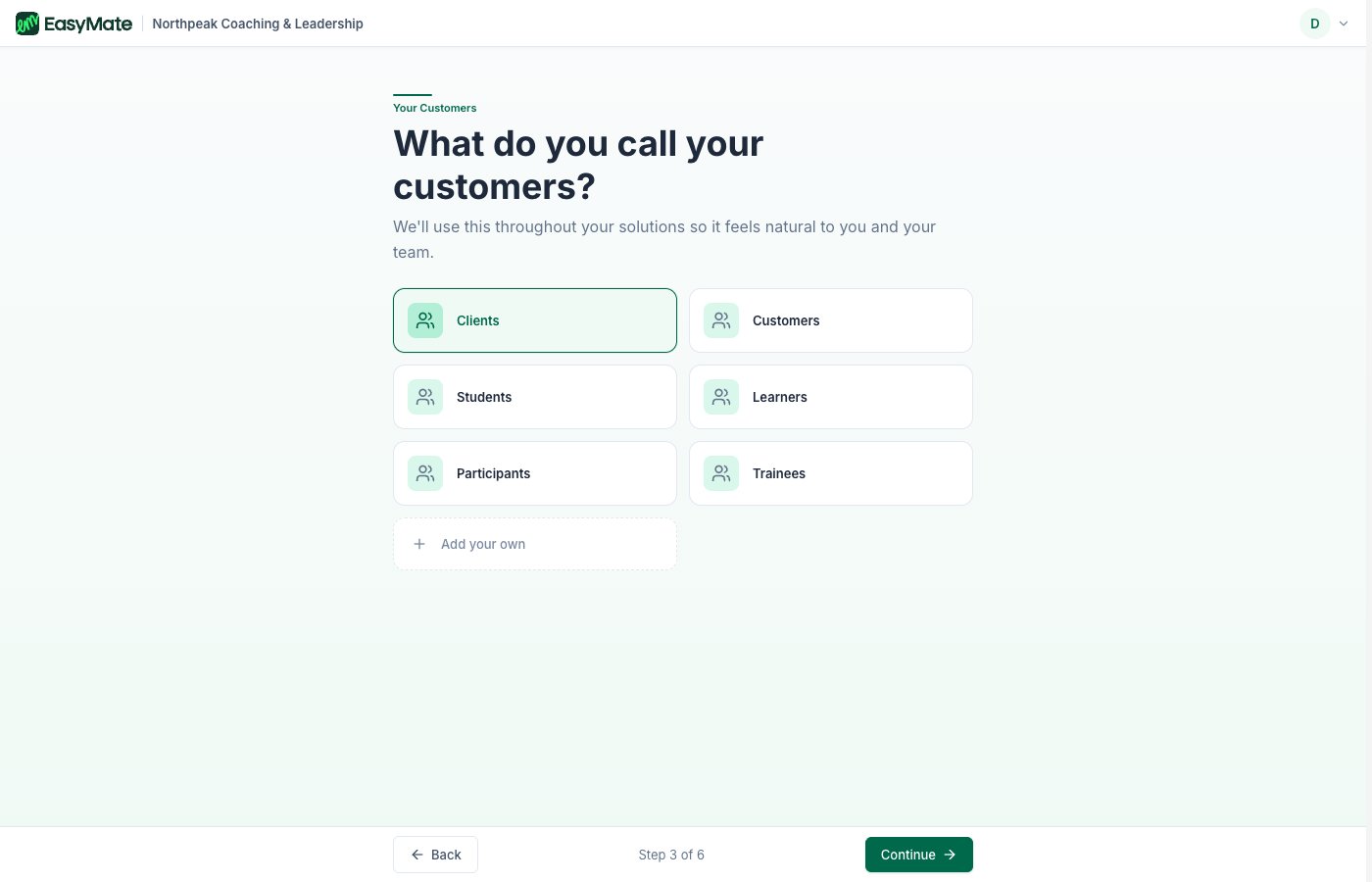
Pick the word you use for the people you serve: Customers, Clients, Members, Patients, Students, and so on. EasyMate uses this word throughout the product, so everything reads the way you'd say it.
## 3. What you call your customers
Pick the word you use for the people you serve: Customers, Clients, Members, Patients, Students, and so on. EasyMate uses this word throughout the product, so everything reads the way you'd say it.
 ## 4. What you offer
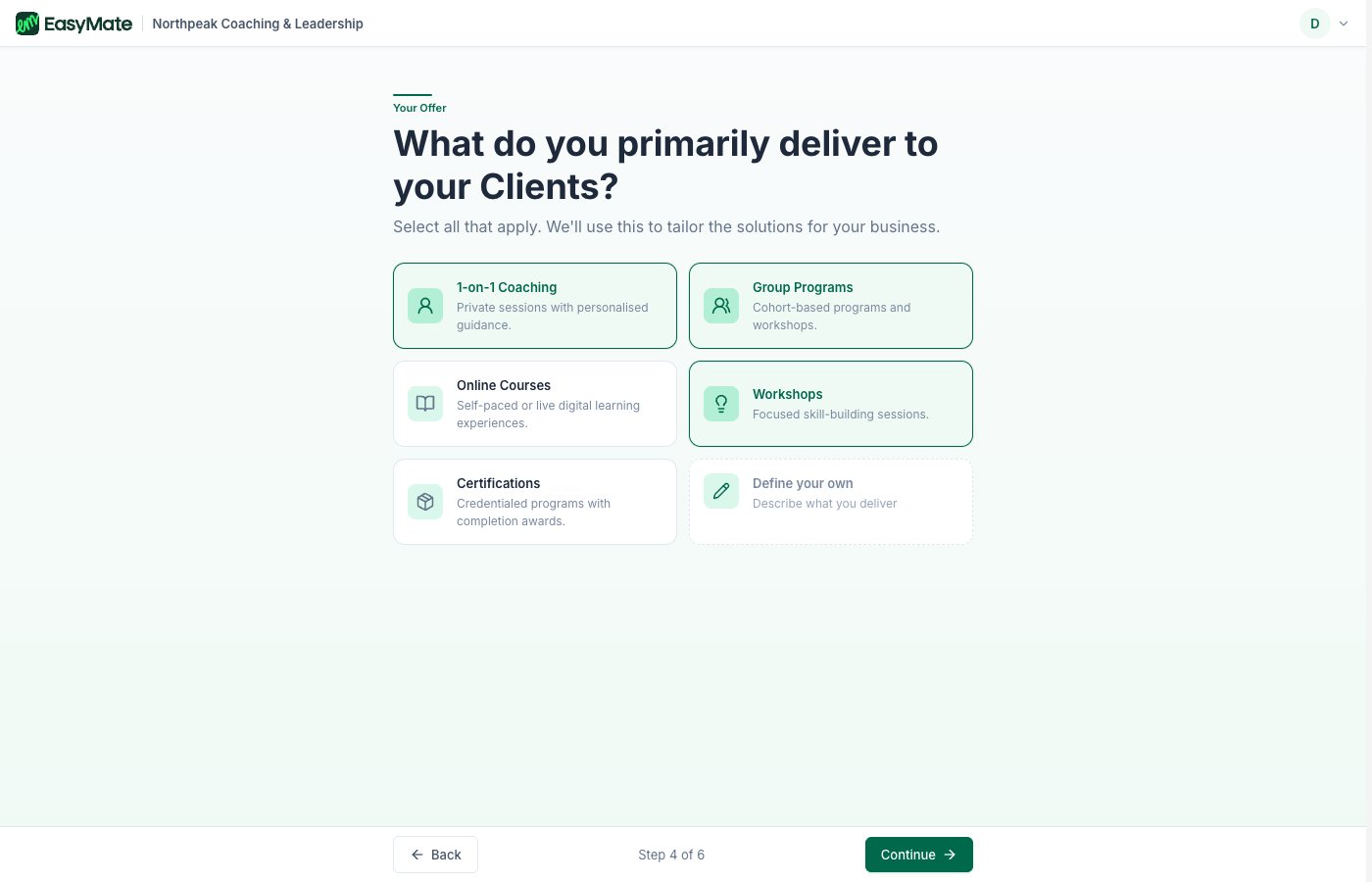
Choose everything you deliver, for example one-to-one work, group sessions, or online courses. You can pick more than one. This helps tailor your solutions to how you actually work.
## 4. What you offer
Choose everything you deliver, for example one-to-one work, group sessions, or online courses. You can pick more than one. This helps tailor your solutions to how you actually work.
 ## 5. What you want help with
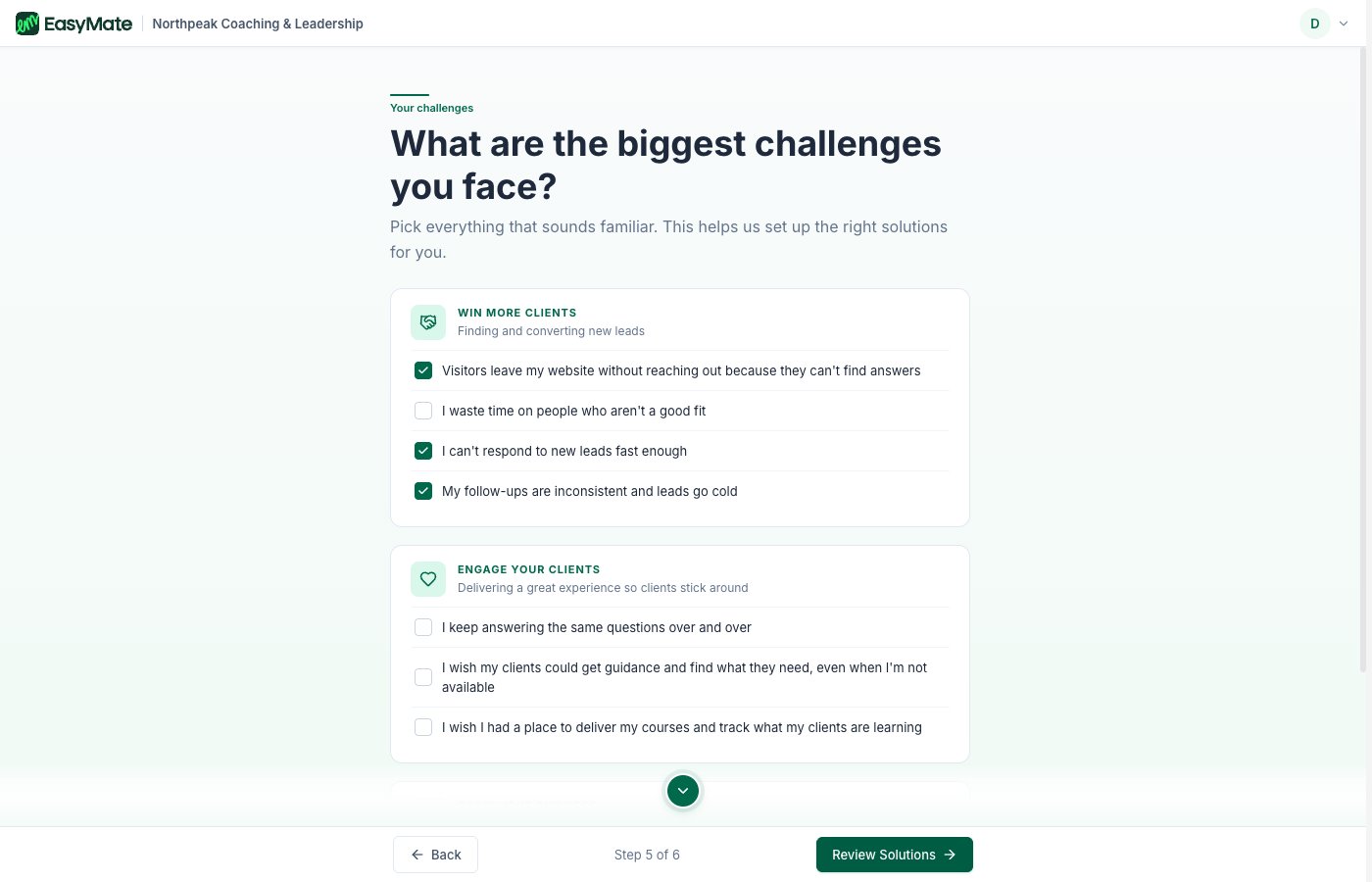
Finally, tell EasyMate what you're hoping to improve. The choices are grouped into three areas: winning more customers, engaging the customers you have, and growing your business. What you pick here decides which solutions EasyMate sets up for you.
## 5. What you want help with
Finally, tell EasyMate what you're hoping to improve. The choices are grouped into three areas: winning more customers, engaging the customers you have, and growing your business. What you pick here decides which solutions EasyMate sets up for you.
 ## What happens next
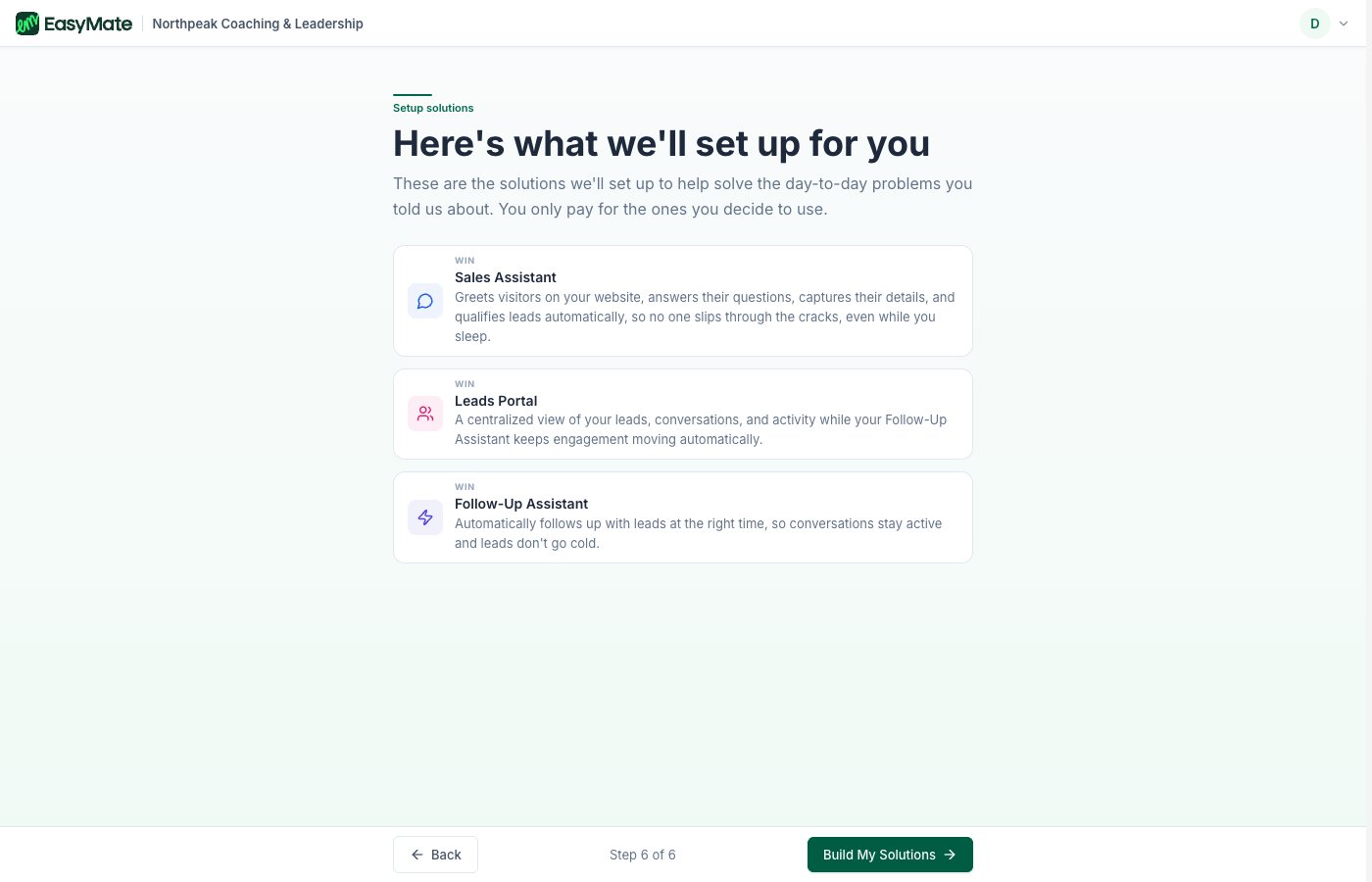
First, EasyMate shows you a summary of the solutions it recommends based on your answers. Review the list, then continue.
## What happens next
First, EasyMate shows you a summary of the solutions it recommends based on your answers. Review the list, then continue.
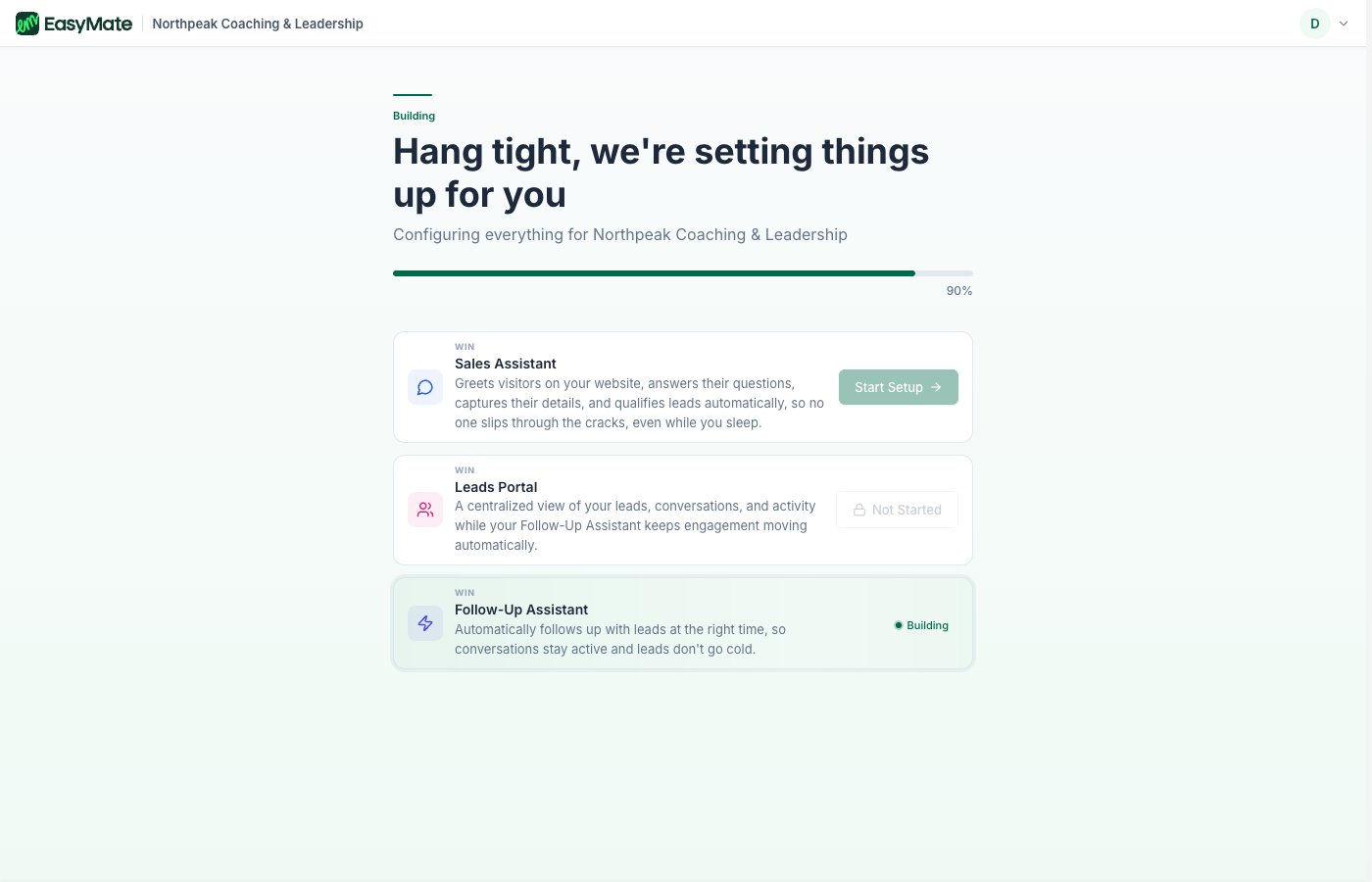
 EasyMate then builds your workspace. You'll see it create your solutions, which takes a few moments, and apply your branding. When it's done, you land in your workspace ready to set up your first solution.
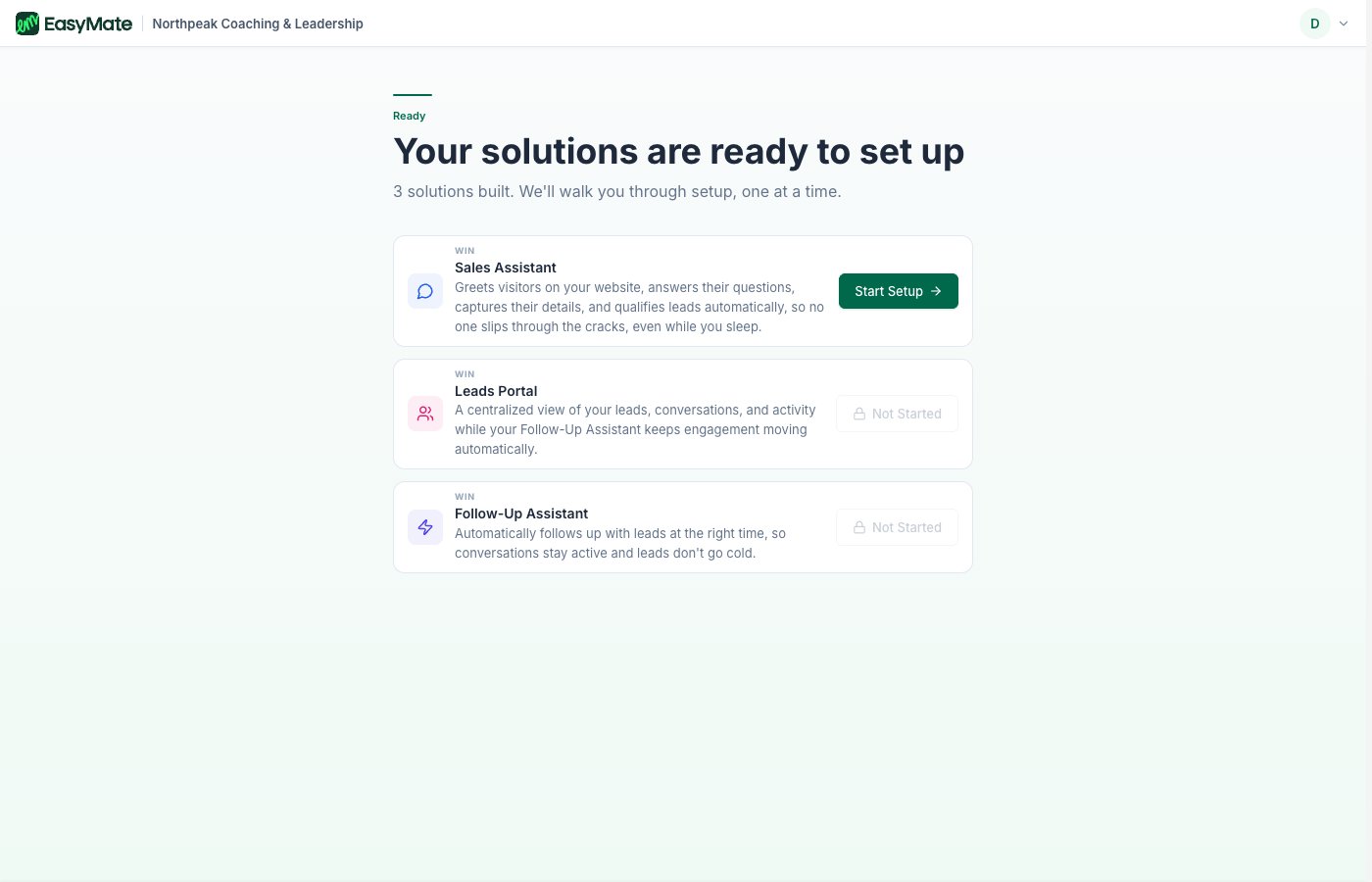 Nothing goes live yet. You set up and launch each solution when you're ready, and you can fine-tune each one as you go.
## Next steps
* [Finding your way around](/docs/getting-started/finding-your-way-around): get comfortable with the main screens.
* [Solutions overview](/docs/solutions/overview): see what each solution does.
Nothing goes live yet. You set up and launch each solution when you're ready, and you can fine-tune each one as you go.
## Next steps
* [Finding your way around](/docs/getting-started/finding-your-way-around): get comfortable with the main screens.
* [Solutions overview](/docs/solutions/overview): see what each solution does.