> ## Documentation Index
> Fetch the complete documentation index at: https://easymate.ai/docs/llms.txt
> Use this file to discover all available pages before exploring further.
# Roles & permissions
> Create custom roles and control access in fine detail, beyond the simple roles a solution offers.
**User Management** in the Builder is the advanced version of a solution's team settings. **Users** works just like your [Leads Portal team](/docs/solutions/leads-portal/team): the people who can sign in. **Roles & Permissions** is where the extra power is. Instead of a handful of fixed roles, you can create your own and control exactly what each one can access.
 ## Users
The **Users** list shows everyone with access to your app, the same people you manage from your Leads Portal's [Your team and roles](/docs/solutions/leads-portal/team). You invite and manage them the same way.
## Roles & Permissions
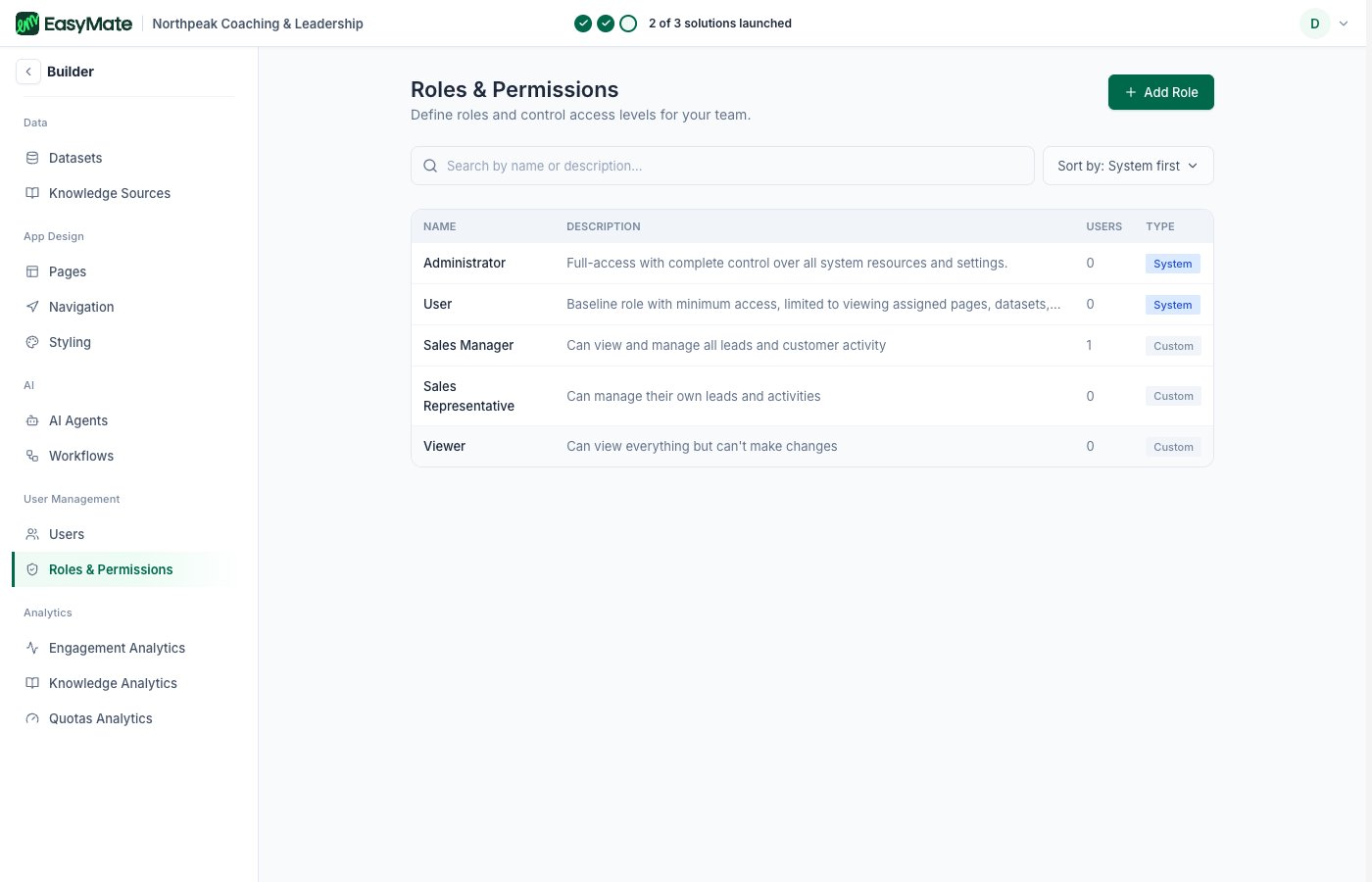
Your solution gives you a few ready-made roles (Administrator, Sales Manager, Sales Representative, Viewer). Here you can go further:
* **See your roles:** each role shows its name, description, how many users have it, and whether it's a built-in (**System**) role or one you made (**Custom**).
* **Add a role:** create a custom role that fits how your business works.
* **Set its access:** open a role to control what it can see and do, in much finer detail than the simple solution roles.
Roles here can be far more specific than the simple solution roles, so give each person the least access they need to do their job. You can change anyone's role later.
## Users
The **Users** list shows everyone with access to your app, the same people you manage from your Leads Portal's [Your team and roles](/docs/solutions/leads-portal/team). You invite and manage them the same way.
## Roles & Permissions
Your solution gives you a few ready-made roles (Administrator, Sales Manager, Sales Representative, Viewer). Here you can go further:
* **See your roles:** each role shows its name, description, how many users have it, and whether it's a built-in (**System**) role or one you made (**Custom**).
* **Add a role:** create a custom role that fits how your business works.
* **Set its access:** open a role to control what it can see and do, in much finer detail than the simple solution roles.
Roles here can be far more specific than the simple solution roles, so give each person the least access they need to do their job. You can change anyone's role later.