> ## Documentation Index
> Fetch the complete documentation index at: https://easymate.ai/docs/llms.txt
> Use this file to discover all available pages before exploring further.
# Leads Portal
> Your back-office app for keeping every lead and customer organized, with the details from your Sales Assistant filled in automatically.
Your Leads Portal is the home for every lead and customer your business has. It's a simple web app your team logs into to see who's in your pipeline, where each person is in your process, and what's happened with them so far. Best of all, leads your **[Sales Assistant](/docs/solutions/sales-assistant)** captures land here automatically, so there's no copying and pasting. It's the hub that keeps everyone organized, so you can stay on top of engaging your customers and growing each relationship.
## Watch a 2-minute overview
## Who this is for
The Leads Portal is for any business that wants one tidy place to track leads and customers instead of scattered notes, spreadsheets, and inboxes. It's included automatically when you start with the launch solutions, so your leads always have somewhere to go.
## Setting it up, step by step
Setup is short, and EasyMate fills in sensible starting points you can adjust.
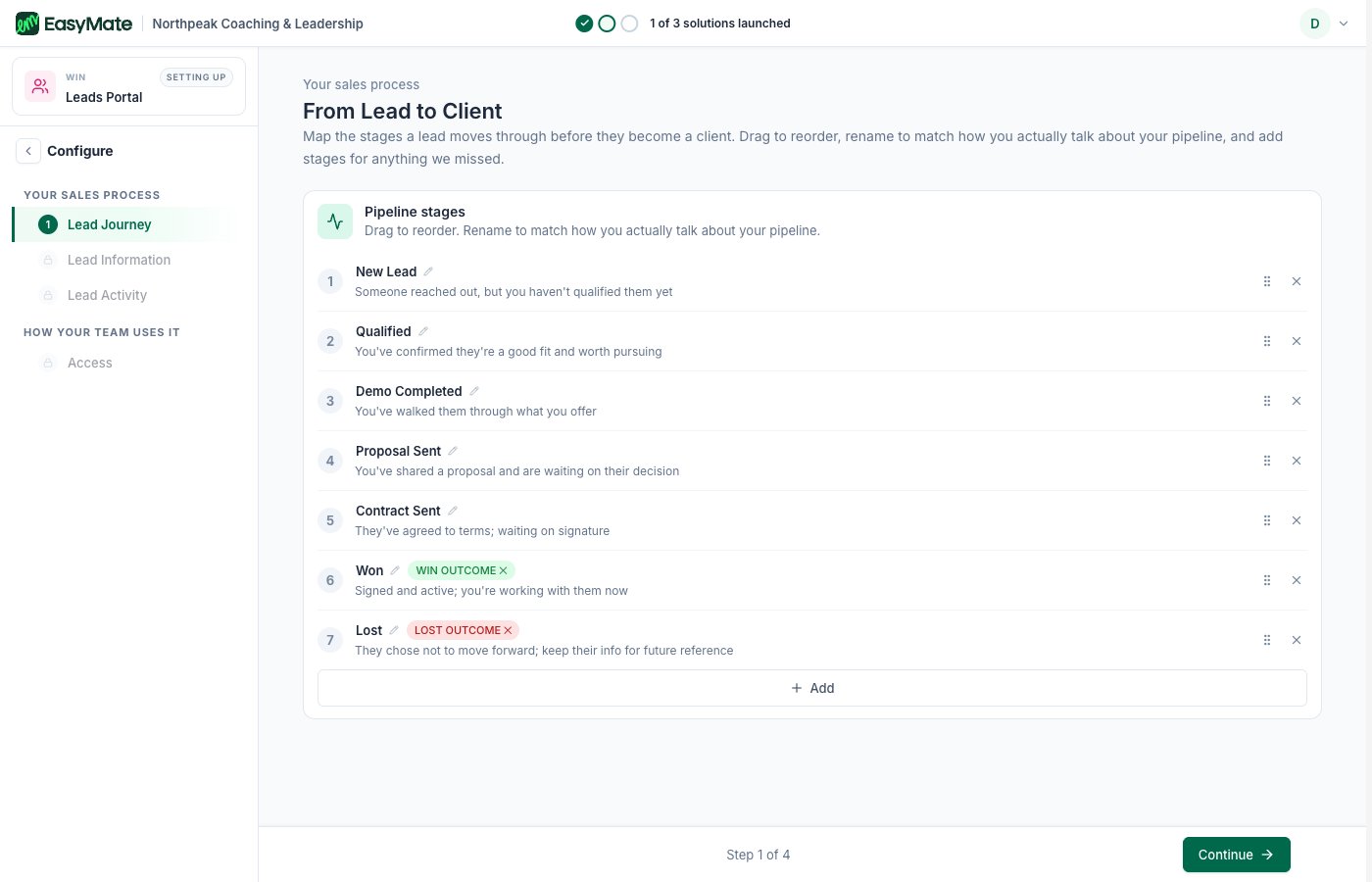
### 1. Lead journey
Lay out the stages a lead moves through, from first contact to becoming a customer. EasyMate starts you with a sensible default: New Lead, Qualified, Demo Completed, Proposal Sent, Contract Sent, Won, and Lost. You can rename stages, drag them into the order that fits your business, add your own, and mark which stages mean you won or lost the deal.
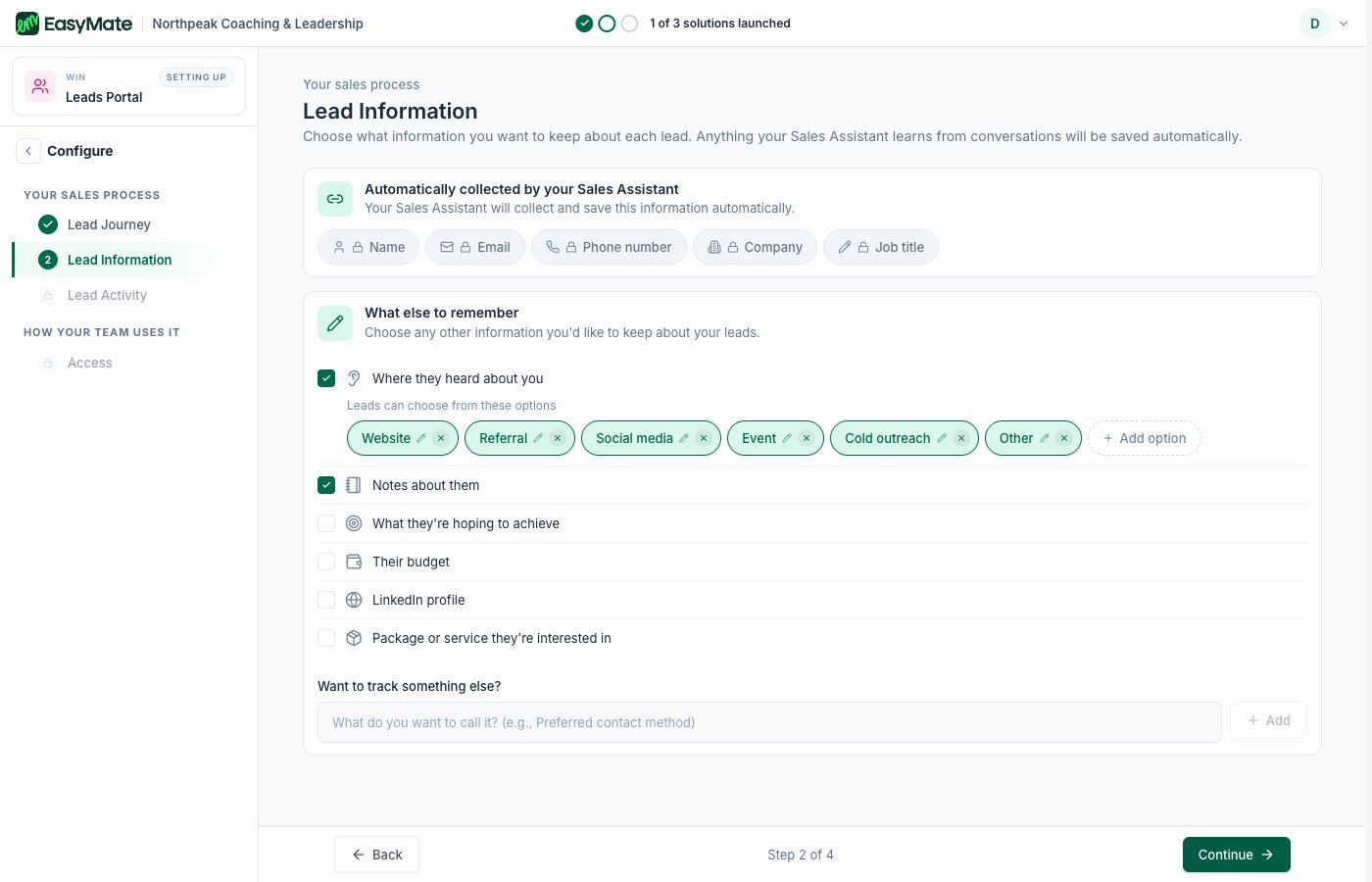
### 2. Lead information
Choose what details to keep on each person, like name, email, phone, company, or budget. You'll see a section showing the details your **Sales Assistant** already collects. Those are filled in for you automatically and kept in sync, so you don't have to set them up twice.
The fields your Sales Assistant captures are managed from the Sales Assistant. If you want to change them, edit them there and the Leads Portal updates to match.
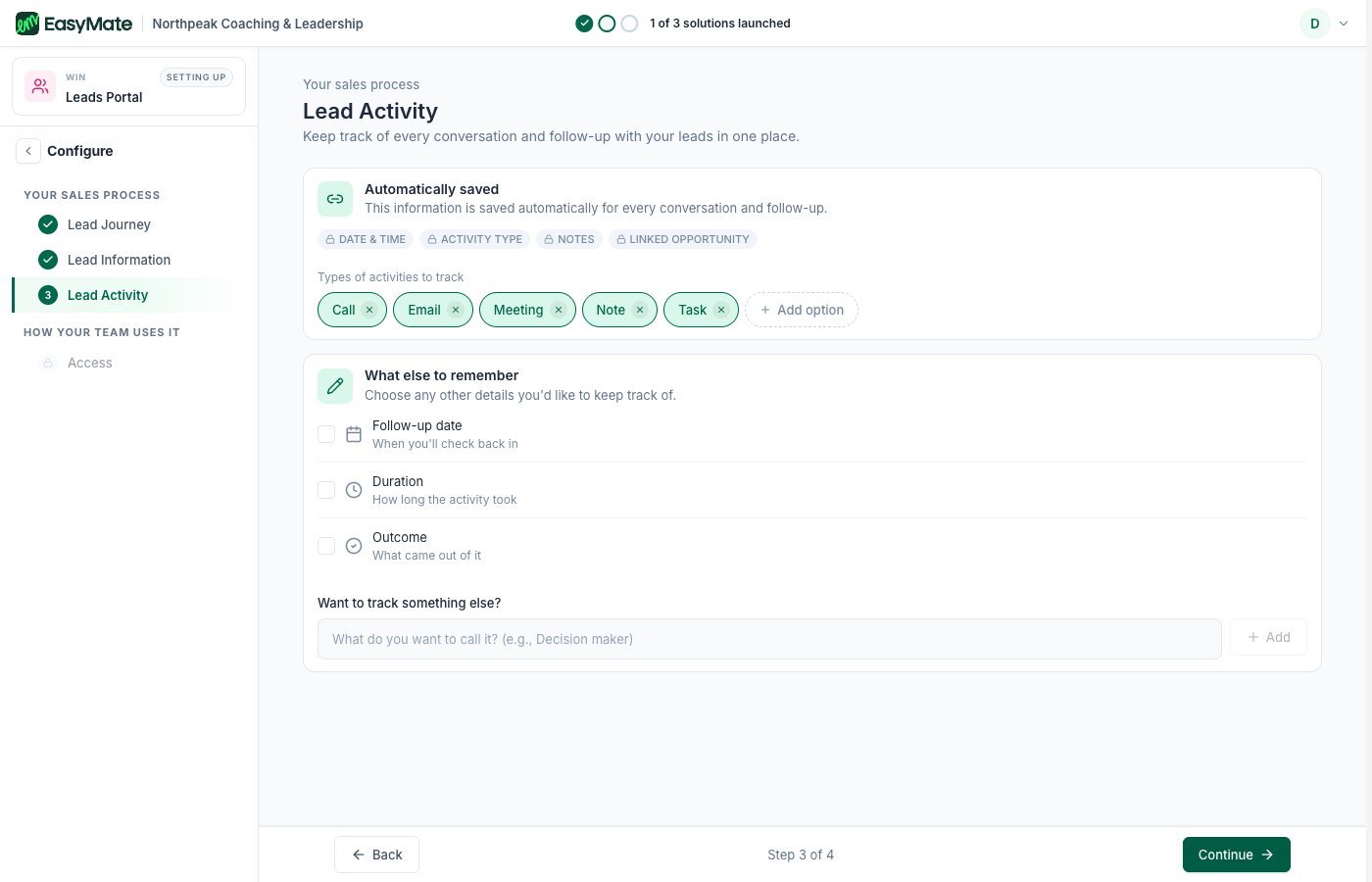
### 3. Lead activity
Decide what to record each time you interact with a lead, such as the date, the type of contact, notes, and the next step. This keeps a clear history on every person.
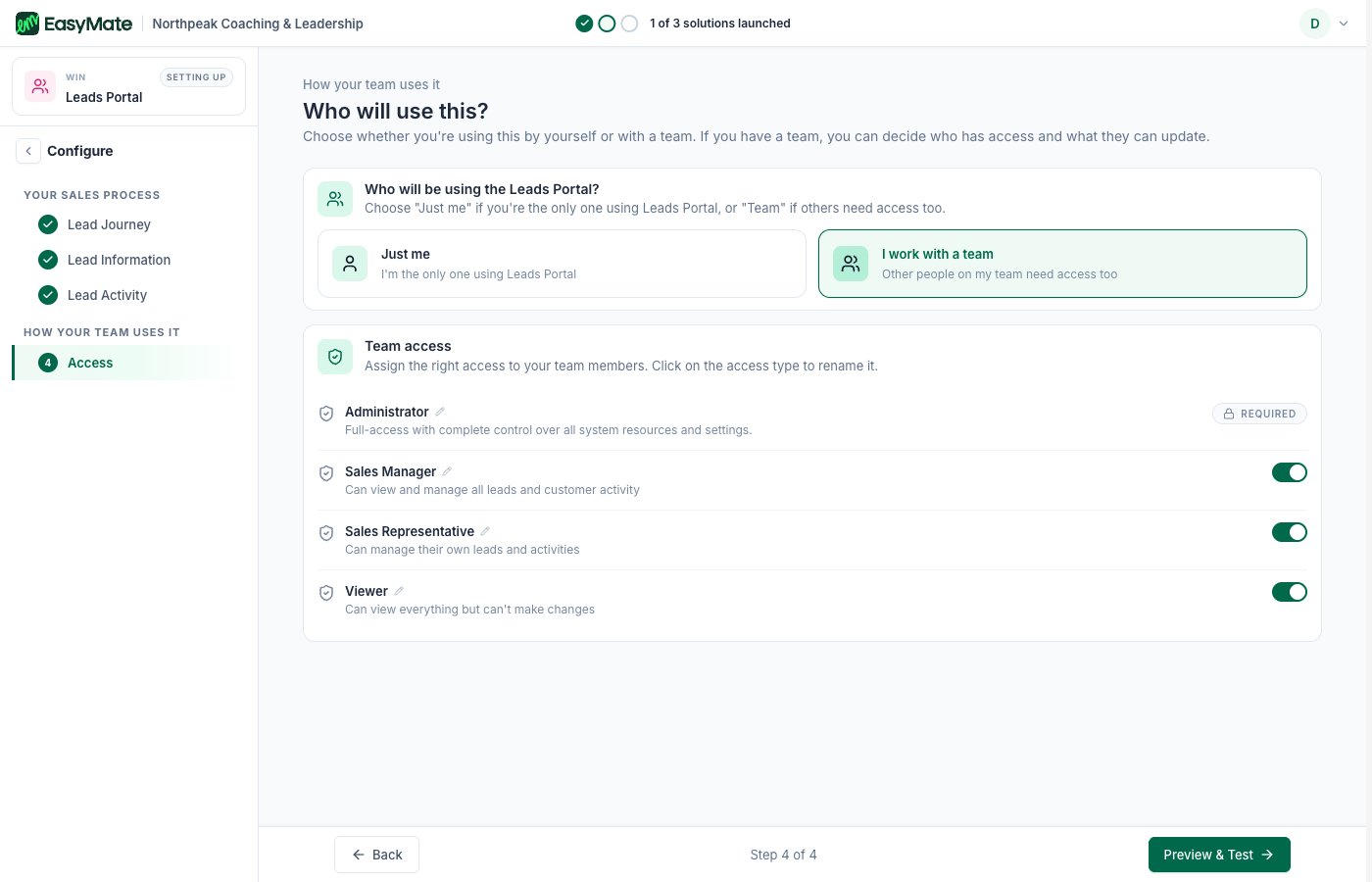
### 4. Access
Choose whether it's **just you** or **you and a team**. If you work with a team, you can turn on simple roles so the right people have the right level of access.
## A few finishing touches
After the main setup, a few optional steps appear from your Leads Portal's page. They're covered in [Branding and settings](/docs/solutions/leads-portal/branding):
* **Look and feel:** add your branding so the Portal feels like yours.
* **Integrations:** connect the other tools you already use.
* **Web address:** the link where your Portal lives.
To invite your team and set what each person can do, see [Your team and roles](/docs/solutions/leads-portal/team).
## Launching your Leads Portal
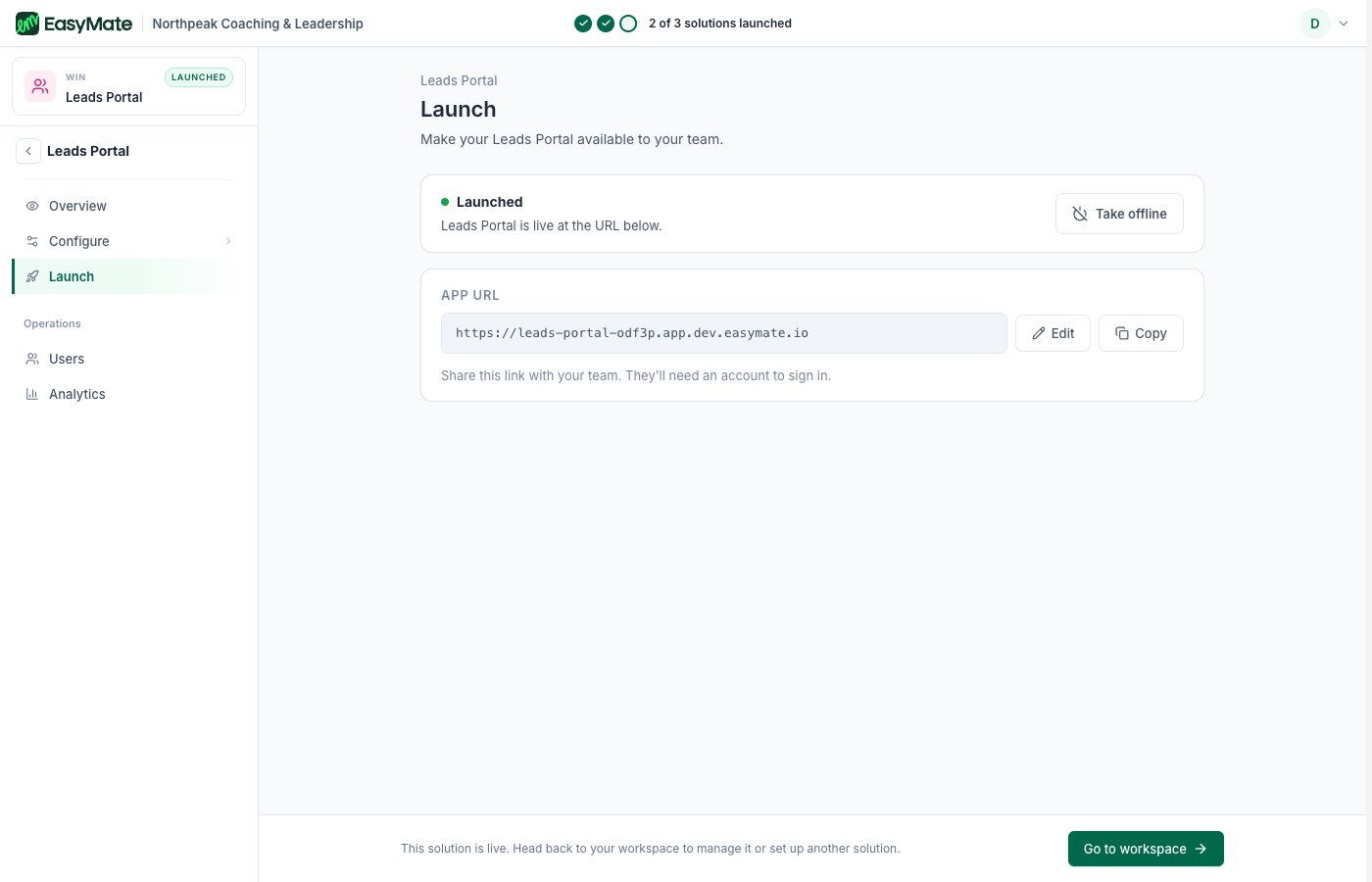
When you're ready to give your team access, launch it from the **Launch** screen.
1. Open your Leads Portal and go to **Launch**.
2. Click **Launch Leads Portal**, then confirm.
3. Copy the **App URL** and share it with your team so they can sign in.
Two things control who can get in: your app has to be **Launched** (see [App Info](/docs/going-deeper/settings/app-info)) and each teammate needs an invite (see [Your team and roles](/docs/solutions/leads-portal/team)).
## What you'll see once it's live
Your Leads Portal opens as a web app at its own address. Inside, you and your team get a visual board of your pipeline, a record for each lead with all their details and history, and simple reports like your total number of contacts and how many deals you're winning. If you invited a team, you manage who's on it from here too.
For a tour of using it day to day, see [Using your Leads Portal](/docs/solutions/leads-portal/using).
## How it works with your other solutions
The Leads Portal sits in the middle of the chain. Your **[Sales Assistant](/docs/solutions/sales-assistant)** feeds new leads into it automatically. The pipeline stages you set up here are exactly what your **[Follow-Up Assistant](/docs/solutions/follow-up-assistant)** uses to decide when to send emails. Because everything stays linked, a change you make to your pipeline here is picked up by your Follow-Up Assistant right away.
 ### 2. Lead information
Choose what details to keep on each person, like name, email, phone, company, or budget. You'll see a section showing the details your **Sales Assistant** already collects. Those are filled in for you automatically and kept in sync, so you don't have to set them up twice.
### 2. Lead information
Choose what details to keep on each person, like name, email, phone, company, or budget. You'll see a section showing the details your **Sales Assistant** already collects. Those are filled in for you automatically and kept in sync, so you don't have to set them up twice.
 ### 3. Lead activity
Decide what to record each time you interact with a lead, such as the date, the type of contact, notes, and the next step. This keeps a clear history on every person.
### 3. Lead activity
Decide what to record each time you interact with a lead, such as the date, the type of contact, notes, and the next step. This keeps a clear history on every person.
 ### 4. Access
Choose whether it's **just you** or **you and a team**. If you work with a team, you can turn on simple roles so the right people have the right level of access.
### 4. Access
Choose whether it's **just you** or **you and a team**. If you work with a team, you can turn on simple roles so the right people have the right level of access.
 ## A few finishing touches
After the main setup, a few optional steps appear from your Leads Portal's page. They're covered in [Branding and settings](/docs/solutions/leads-portal/branding):
* **Look and feel:** add your branding so the Portal feels like yours.
* **Integrations:** connect the other tools you already use.
* **Web address:** the link where your Portal lives.
To invite your team and set what each person can do, see [Your team and roles](/docs/solutions/leads-portal/team).
## Launching your Leads Portal
When you're ready to give your team access, launch it from the **Launch** screen.
1. Open your Leads Portal and go to **Launch**.
2. Click **Launch Leads Portal**, then confirm.
3. Copy the **App URL** and share it with your team so they can sign in.
## A few finishing touches
After the main setup, a few optional steps appear from your Leads Portal's page. They're covered in [Branding and settings](/docs/solutions/leads-portal/branding):
* **Look and feel:** add your branding so the Portal feels like yours.
* **Integrations:** connect the other tools you already use.
* **Web address:** the link where your Portal lives.
To invite your team and set what each person can do, see [Your team and roles](/docs/solutions/leads-portal/team).
## Launching your Leads Portal
When you're ready to give your team access, launch it from the **Launch** screen.
1. Open your Leads Portal and go to **Launch**.
2. Click **Launch Leads Portal**, then confirm.
3. Copy the **App URL** and share it with your team so they can sign in.