> ## Documentation Index
> Fetch the complete documentation index at: https://easymate.ai/docs/llms.txt
> Use this file to discover all available pages before exploring further.
# Your team and roles
> Invite teammates into your Leads Portal and choose what each person can access.
If you work with other people, you can invite them to join your Leads Portal and give each person the right level of access. You manage your team from inside your **Leads Portal**, in the **Users** area.
## Inviting someone
1. Open your **Leads Portal** and go to **Users**.
2. Click **Invite User**.
3. Enter one or more **email addresses** (you can add up to 20 at once).
4. Enter the person's **first name**.
5. Choose their **role** (see below).
6. Optionally add a short **message** to include in the invitation email.
7. Click **Send Invite**.
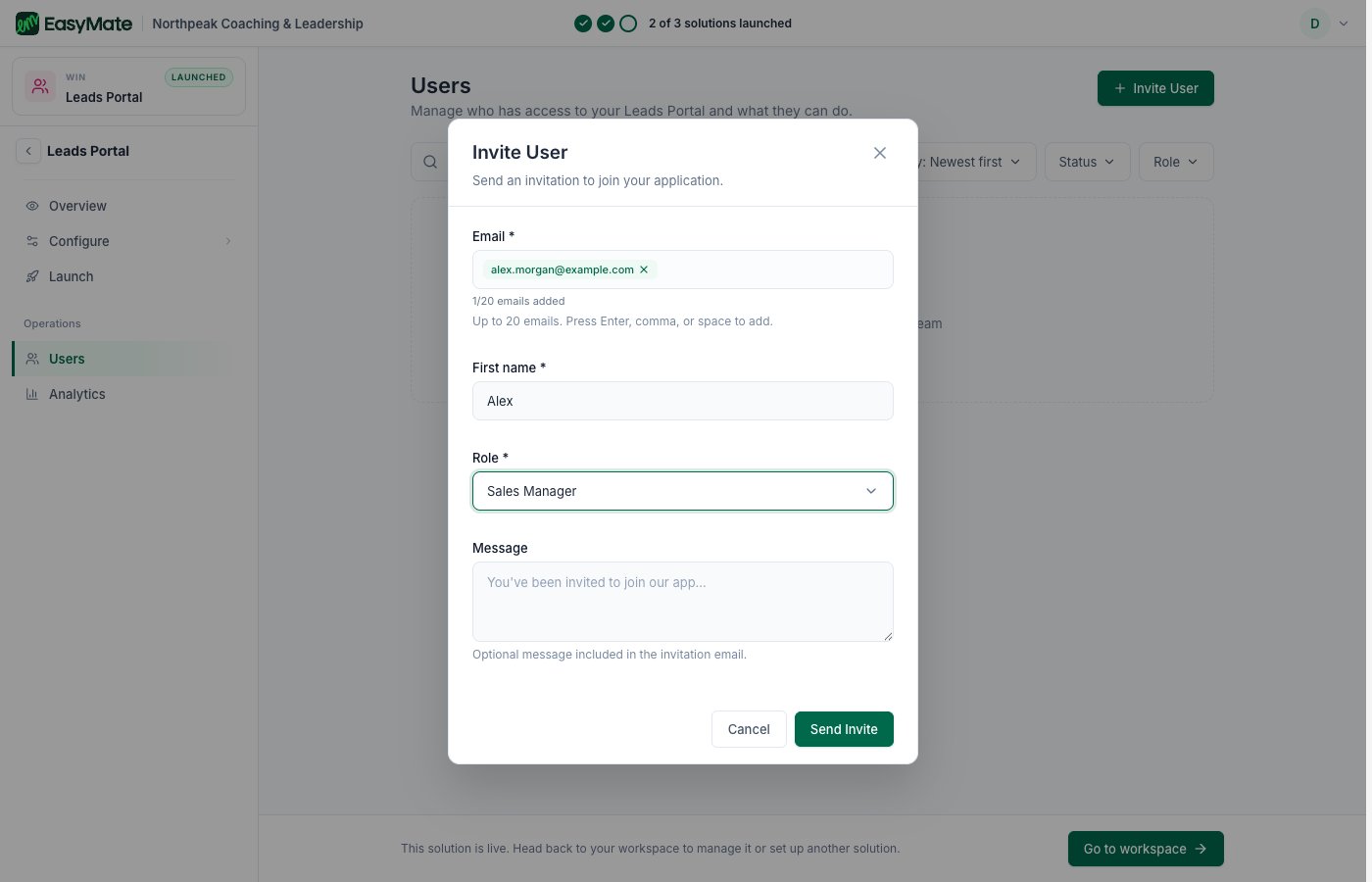 Each person receives an email with a link to join. They click it, set their own password, and they're in.
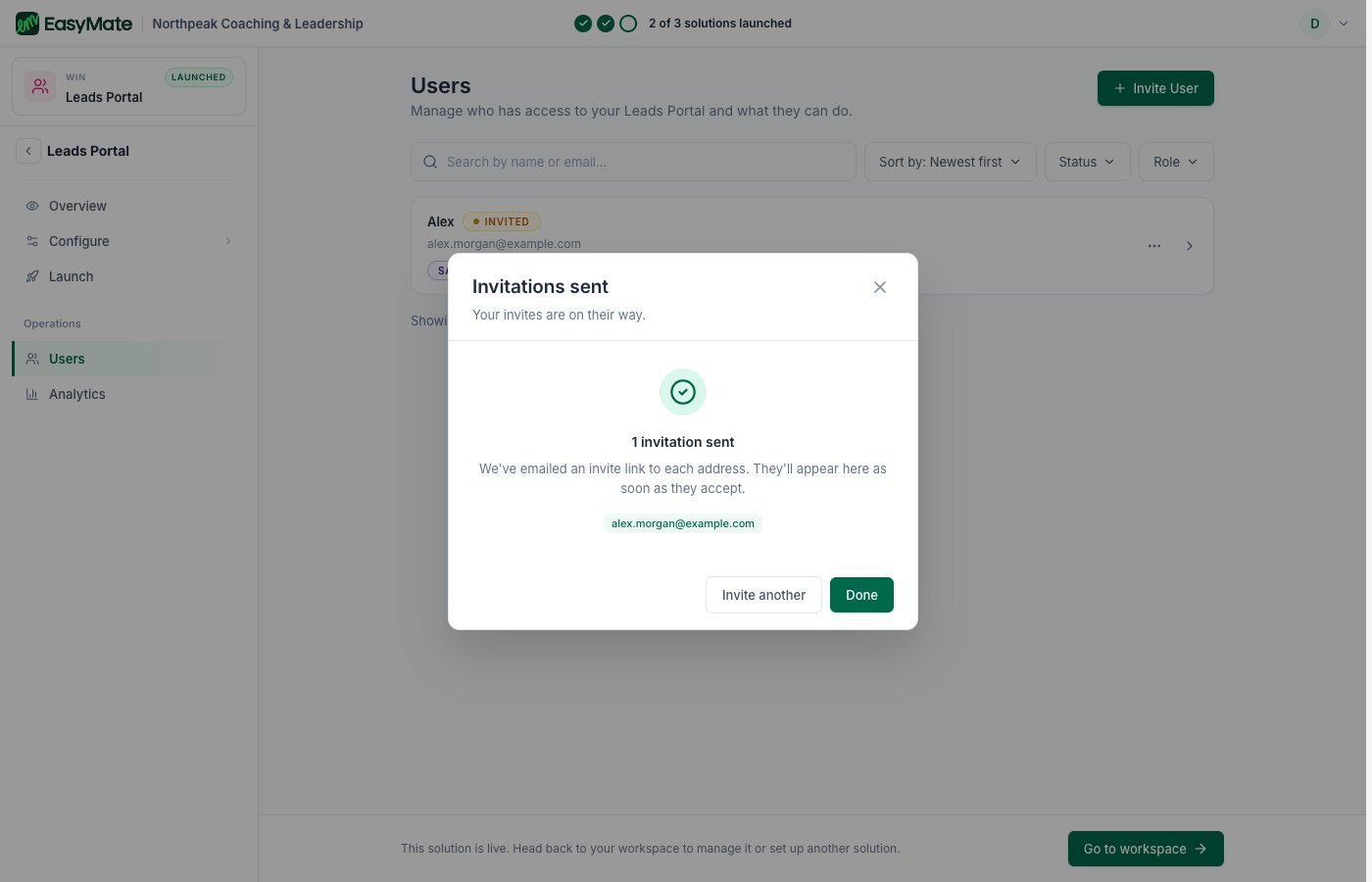 Your team list shows each person's **Name**, **Email**, **Role**, and **Status**. Someone you've invited but who hasn't joined yet shows as **Invited**; once they accept, they show as **Active**.
## Roles
A person's role decides what they can see and do. The roles are:
* **Administrator**: full control over everything, including your team and settings.
* **Sales Manager**: can view and manage all leads and customer activity.
* **Sales Representative**: can manage their own leads and activities.
* **Viewer**: can view everything but can't make changes.
You can rename any role to match how your team talks. Pick the smallest role that lets someone do their job, and you can change anyone's role later from the same Users area.
## Changing or removing access
To change what someone can do, update their role in the Users list. To remove someone, remove them from the list. Their access ends right away, and the records they worked on stay in your Leads Portal.
Your team list shows each person's **Name**, **Email**, **Role**, and **Status**. Someone you've invited but who hasn't joined yet shows as **Invited**; once they accept, they show as **Active**.
## Roles
A person's role decides what they can see and do. The roles are:
* **Administrator**: full control over everything, including your team and settings.
* **Sales Manager**: can view and manage all leads and customer activity.
* **Sales Representative**: can manage their own leads and activities.
* **Viewer**: can view everything but can't make changes.
You can rename any role to match how your team talks. Pick the smallest role that lets someone do their job, and you can change anyone's role later from the same Users area.
## Changing or removing access
To change what someone can do, update their role in the Users list. To remove someone, remove them from the list. Their access ends right away, and the records they worked on stay in your Leads Portal.