

The two views
- Setup is where you build and launch your solutions. You’ll spend most of your early time here, working through each solution’s steps.
- Workspace is your day-to-day home once things are live. It shows how your solutions are doing at a glance, with quick stats like new leads this week, and is where you’ll check in once you’re up and running.
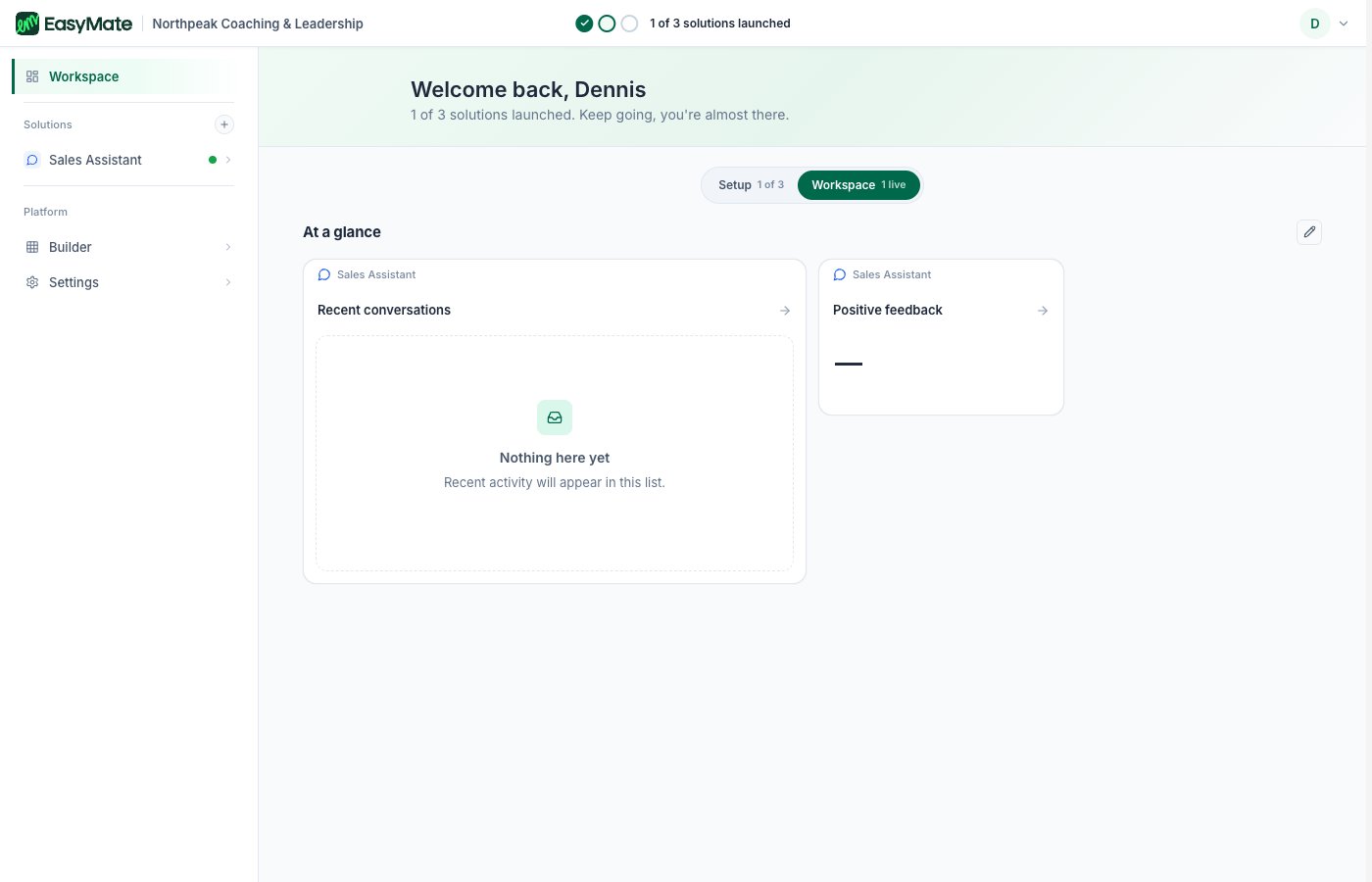
The switcher sits at the top. Workspace is your day-to-day home once solutions are live.
Your solutions and their status
Each solution appears as a card. A small label on the card tells you where it is: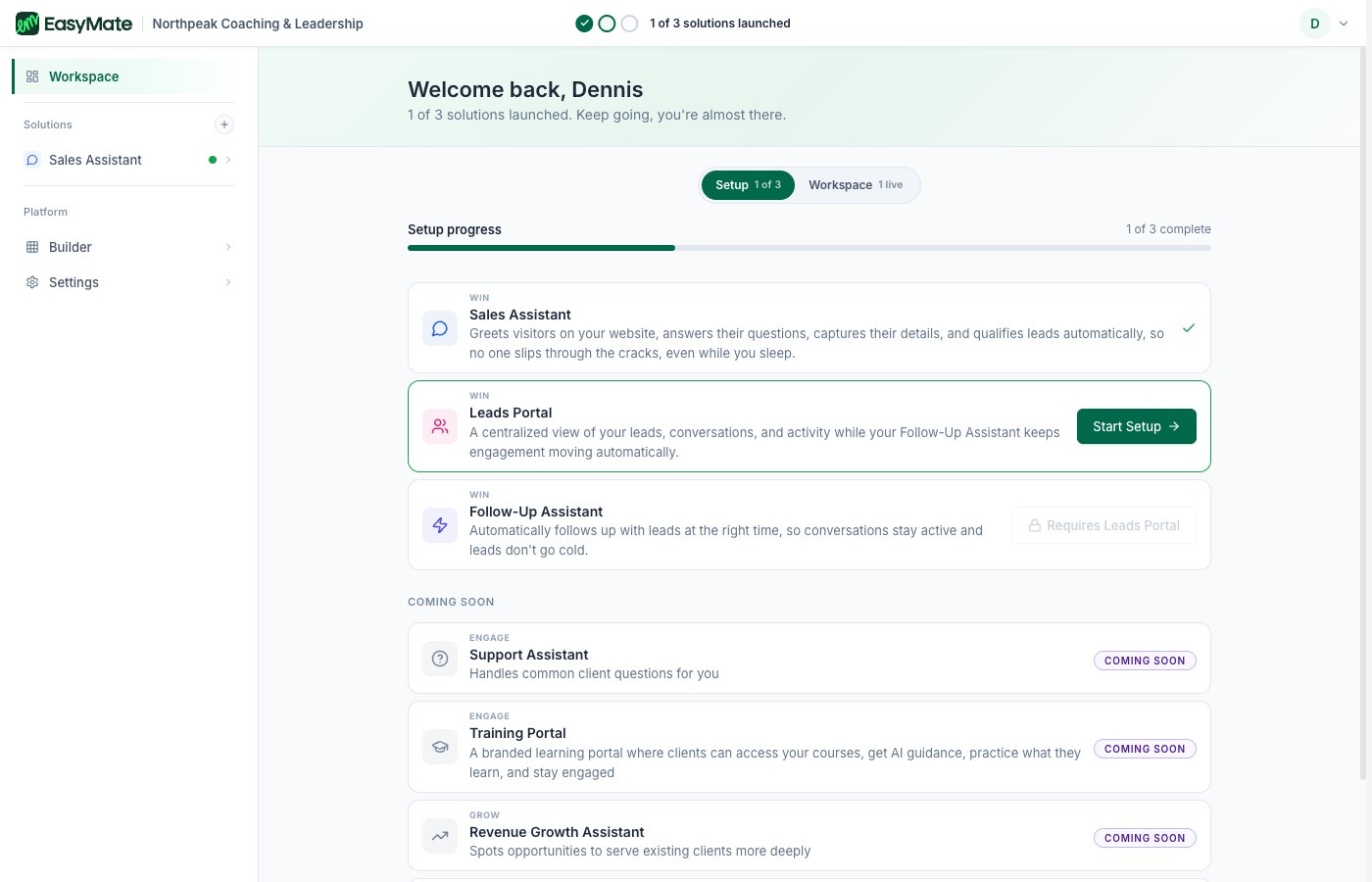
The Setup view lists your solutions and their status. Coming-soon solutions appear lower down.
Some solutions wait for another one first. For example, your Leads Portal becomes available after your Sales Assistant is set up, because it builds on it. A solution that’s waiting will say so until it’s ready for you.
The preview
While you set a solution up, EasyMate shows a preview of what your customers will see, such as the chat widget or your portal. During setup this uses sample data so the screen looks realistic. Once you add your own first contact or content, your real information takes its place.Next steps
- Solutions overview: set up your first solution.
- Account and sign-in: signing in and your profile.