

Before you start, launch your Sales Assistant and copy your install snippet. Keep it on your clipboard, you’ll paste it in below.
Add the snippet with Code snippets
- In Circle, click Website in the left menu (under Manage) to expand it.
- Click Code snippets.
- Paste your EasyMate snippet into the Head code snippets box.
- Click Save changes in the top right corner.
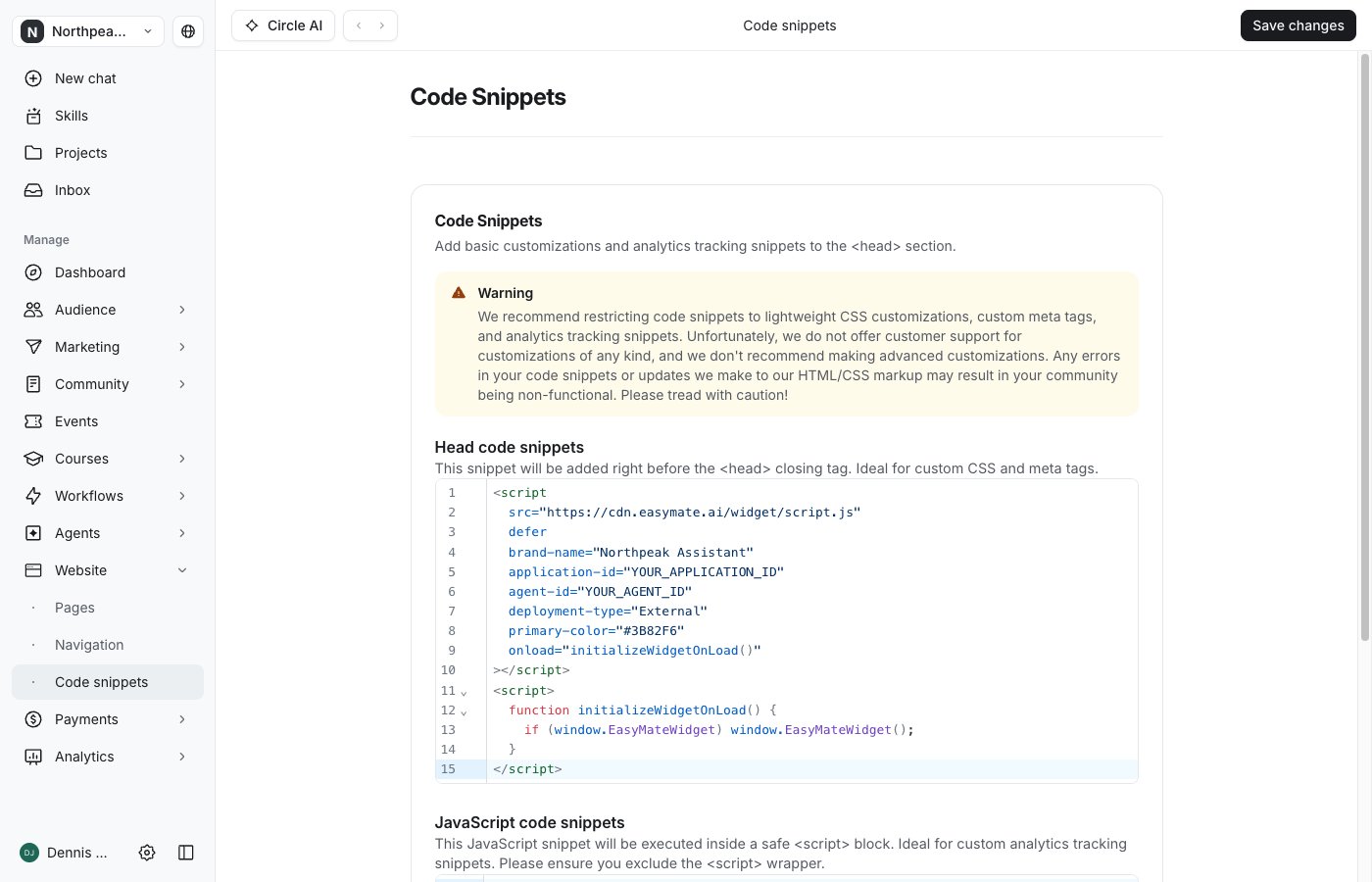
Paste your snippet into the Head code snippets box, then click Save changes.
Circle only runs code snippets on the web version of your community. Members using the Circle mobile app (or a Circle branded app) won’t see the chat.
Verify it’s working
- Open your Circle community in a new browser tab (or an incognito window).
- Look for the chat button, usually in a bottom corner.
- Click it and send a test message.