

Before you start, launch your Sales Assistant and copy your install snippet. Keep it on your clipboard, you’ll paste it in below.
Which method should I use?
WordPress gives you a few ways to add custom code. We recommend the plugin method, because it works on any theme and survives theme updates.Method 1: Header/footer plugin (recommended)
- In your WordPress dashboard, go to Plugins, then Add New.
- Search for Insert Headers and Footers. The top result is WPCode (Insert Headers and Footers + Custom Code Snippets).
- Click Install Now, then Activate.
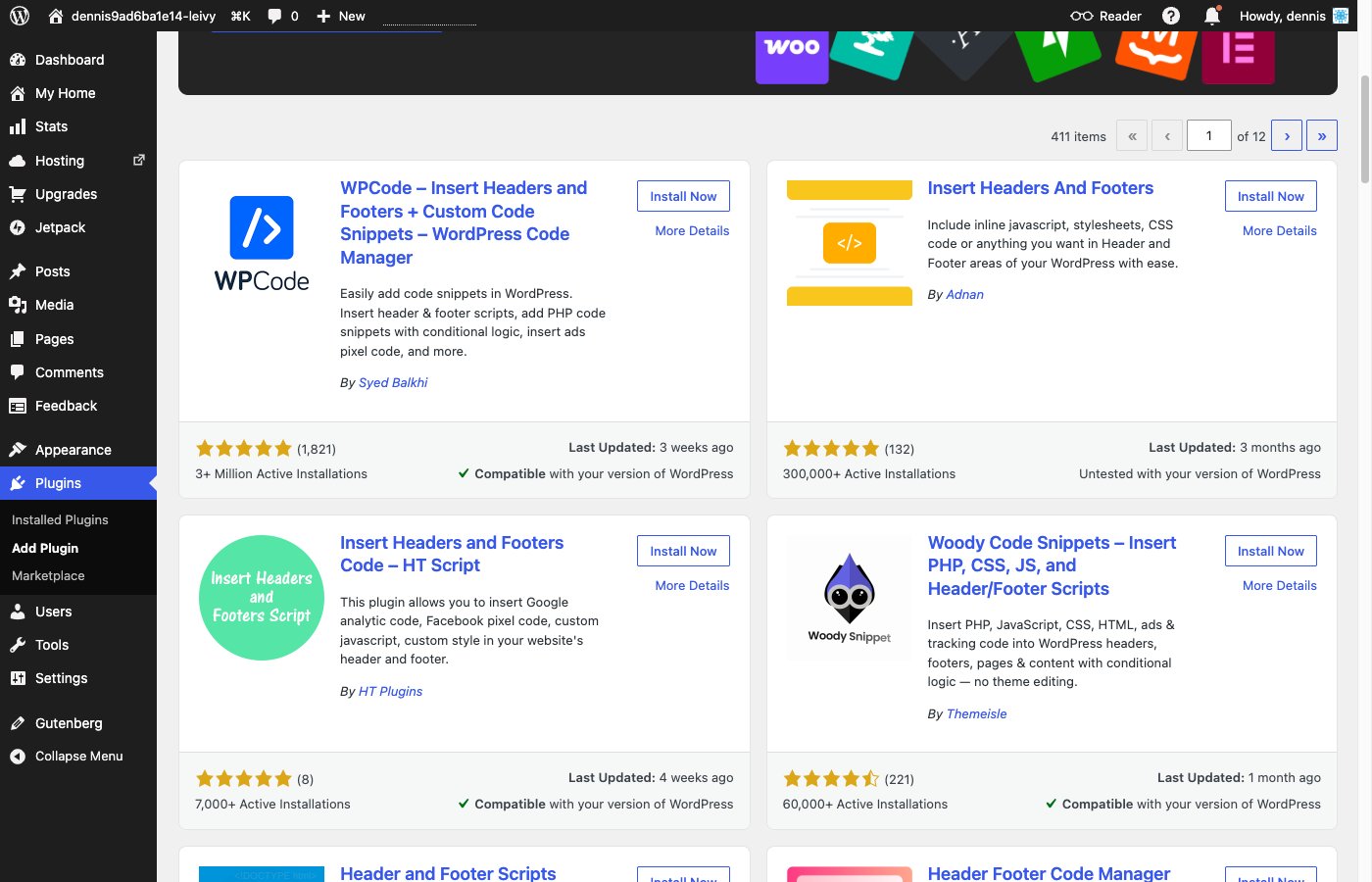
Search for "Insert Headers and Footers" and install WPCode, then activate it.
- In the left menu, go to Code Snippets → Header & Footer.
- Paste your EasyMate snippet into the Footer box. It loads after your page content, the most reliable spot for a chat widget.
- Click Save Changes.
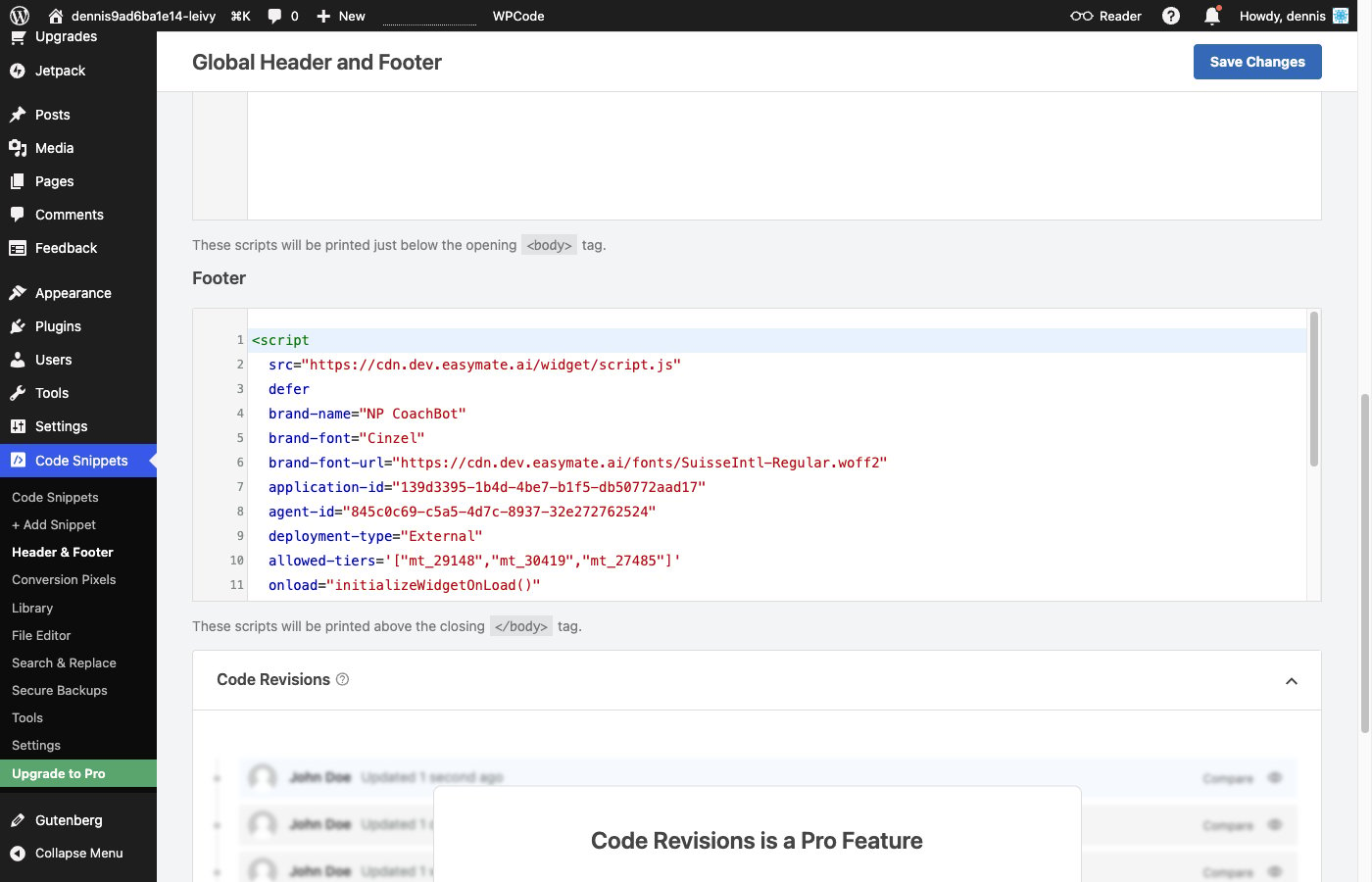
Paste your snippet into the Footer box, then click Save Changes.
Method 2: Theme footer file
- Go to Appearance → Theme File Editor.
- In the list of theme files, open
footer.php. - Find the closing
</body>tag near the bottom. - Paste your EasyMate snippet immediately before
</body>. - Click Update File.
Method 3: Single page only (Custom HTML block)
Use this only if you want the chat on one specific page.- Edit the page in the block editor.
- Add a Custom HTML block.
- Paste your EasyMate snippet into the block.
- Update the page.
Verify it’s working
- Open your site in a new browser tab (or an incognito window).
- Look for the chat button, usually in a bottom corner.
- Click it and send a test message.