

Before you start, launch your Sales Assistant and copy your install snippet. Keep it on your clipboard, you’ll paste it in below.
Add the snippet with Edit HTML code
Fourthwall’s Edit HTML code setting adds custom code to every page of your site. It’s available on every Fourthwall plan.- In your Fourthwall dashboard, click Site design in the left menu.
- At the top of the design panel, click the Style tab.
- Scroll to the bottom of the panel and click Edit HTML code to expand it.
- Tick Enable footer code.
- Paste your EasyMate snippet into the box under Enable footer code.
- Click Save in the top right corner.
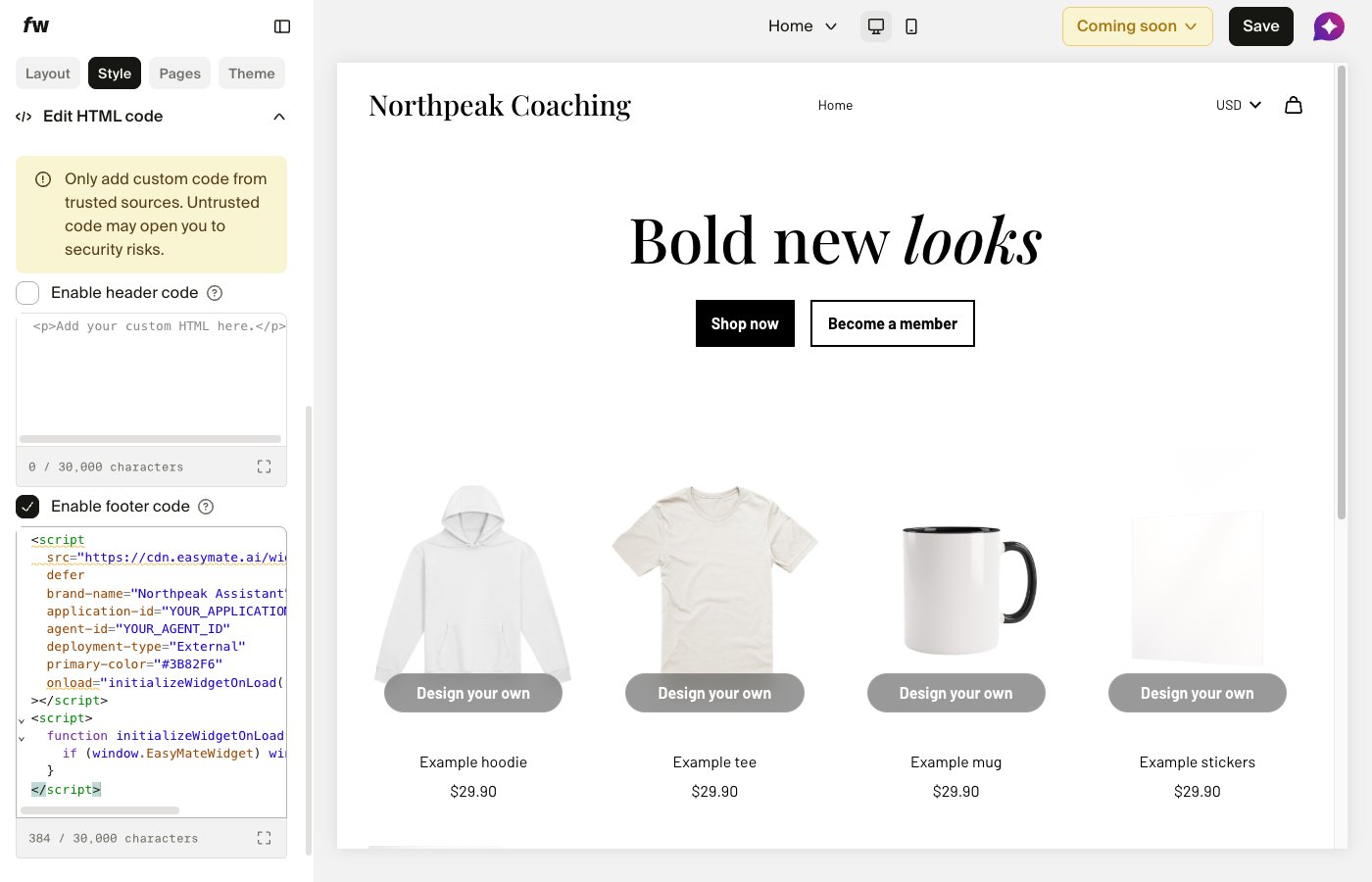
Tick Enable footer code, paste your snippet into the box below it, then click Save.
Verify it’s working
- Open your live Fourthwall site in a new browser tab (or an incognito window).
- Look for the chat button, usually in a bottom corner.
- Click it and send a test message.